

Summary of what’s covered:
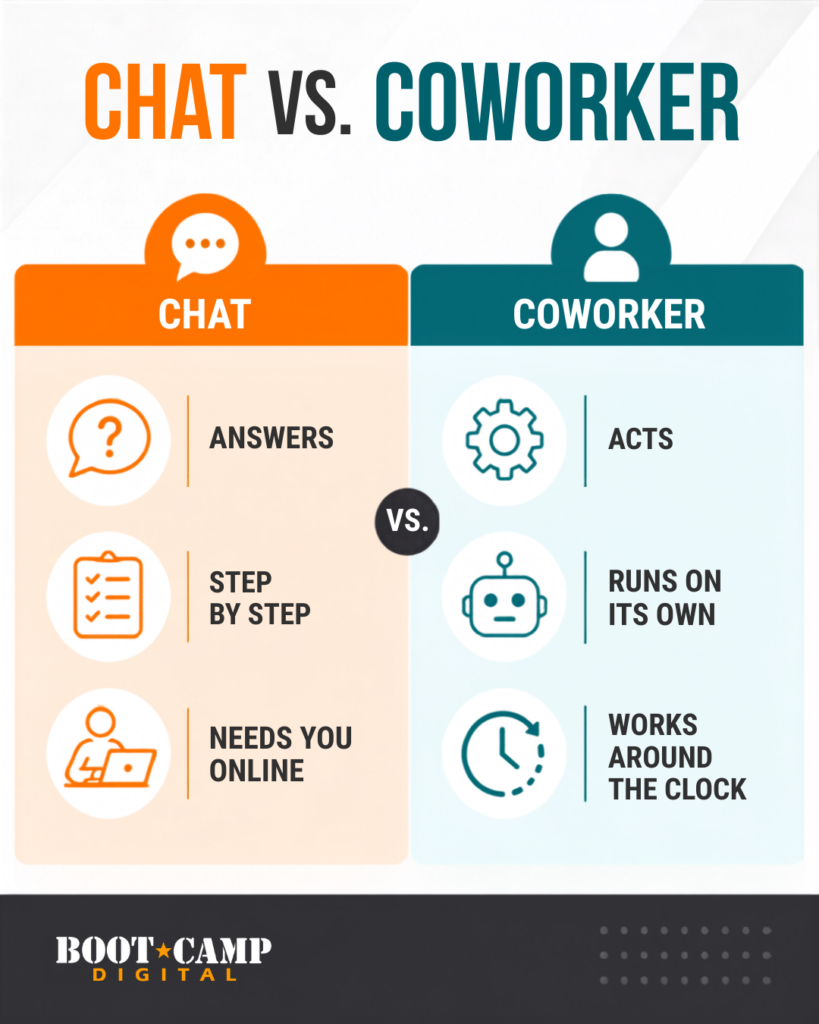
- What’s the Real Difference Between Chat and a Coworker? Chat helps you do the work. A coworker actually does the work for you. Here’s why that distinction should shape how you use both.
- Three Things a Coworker Can Do That Chat Can’t Coworkers can touch your files directly, run multi-step tasks on their own, and work in the background and inside your browser, giving you back real time.
- How to Set Up Your First Coworker Task A walkthrough of creating a task, from a simple one-liner to detailed step-by-step instructions.
- Six Real Coworker Tasks You Can Put to Work Today A daily morning briefing, LinkedIn connection requests, an award application, a Friday recap, LinkedIn commenting, and a new-hire onboarding document.
- The Story That Should Make You Cautious A cautionary tale about what can happen when you skip approvals without thinking it through.
- How to Decide When to Skip Approvals A simple framework for when to let AI act freely versus when to check its work first.
- Coworker vs. Projects vs. Skills: Which Tool, When Why a coworker shouldn’t replace any of the other AI tools you already rely on.
- My Advice If You’re Just Getting Started Where I’d point you first if coworkers are new to you.
What’s the Real Difference Between Chat and a Coworker?
If you’ve spent any time using AI chat, you already know the pattern. You ask a question, it gives you an answer, and then you’re the one who has to act on it. I’ve spent nearly two decades helping businesses adopt digital marketing, social media, and AI tools, and this is the single distinction I see people misunderstand most.
Chat helps you complete work. If you’re researching something, chat helps you figure out A, B, and C, but you’re still the one assembling, organizing, and sending. A coworker does that work for you. It doesn’t just answer your question. It takes the action.
Once you internalize that difference, it becomes much easier to decide which tool actually fits the task in front of you.
Three Things a Coworker Can Do That Chat Can’t
1. It works directly inside your files and systems.
With chat, if you want it to use a file, you have to upload it or tell it exactly where to find it. A coworker can actively read, write, move, and organize files right on your own desktop, without you babysitting the process.
Example: I asked my coworker to scan my desktop, group my last 14 days of screenshots by topic, and check with me before organizing them. It found the files itself, proposed a structure, and then physically moved everything into new folders once I gave it the go-ahead.
2. It handles multi-step tasks on its own.
In chat, you typically have to walk the AI through each step to keep it moving. A coworker can take a high-level objective and figure out the individual steps itself, executing them independently so you don’t have to.
Example: When I asked mine to pull together our scattered onboarding materials (handbook, SOPs, random notes) into one clean document, it broke the request into five steps on its own, tracked its progress against each one, and searched my entire shared drive without me telling it which files to use.
3. It works asynchronously, in the background, and inside your actual browser.
Coworkers can run scheduled tasks whether or not you’re logged in, and as long as your browser is open, they can click through actual websites the way you would.
Example: I have a task that opens Chrome, logs into LinkedIn as me, finds a specific influencer’s latest post, and leaves a comment I’ve already approved. I can literally watch the browser tab open and the comment get typed and posted in real time.
How to Set Up Your First Coworker Task
Starting a task looks almost identical to starting a chat. It just asks, “What can I take off your plate?” instead of “What can I help you with?” That question is really the whole idea in one sentence.
You don’t need formal system instructions the way you would for a project or a skill. You can just describe, in plain language, what you want done, and let it get started.
That said, giving it steps when you already know them gets you better results than leaving everything up to the AI. For my screenshot project, I didn’t just say “organize my screenshots.” I said scan the desktop first, then focus on the last 14 days, then group similar images, then check in with me before moving anything. If you have the specifics, giving them upfront speeds things up considerably.
Six Real Coworker Tasks You Can Put to Work Today
1. A daily morning briefing.
Every day at 7 a.m., your coworker can scan your inbox for emails you still owe replies to, pull your calendar, research anyone you’re meeting externally, and find their LinkedIn profile, then compile all of it into one email sent straight to you.
Example: The first time I saw mine run, it had already found the LinkedIn profiles of two people I was meeting that day, something I would normally do manually, five minutes before each call, if I remembered at all.
2. Turning that research into LinkedIn connection requests.
Once you see your morning briefing surfacing LinkedIn profiles, you can build a second task on top of it: find the people mentioned in that morning’s email and send them a connection request with a short note.
Example: I told mine to use the note “looking forward to meeting with you today,” a small touch, but one I never had time to do consistently before.
3. Drafting an industry award application.
If you’ve ever seen an ad for an industry award and remembered how manual that process usually is (someone building a Word doc from scratch, you editing it after the fact), you can ask a coworker to draft the application instead, and tell it to write “need” anywhere it doesn’t have real information rather than guessing.
Example: Mine pulled our actual year-end financials from files I’d given it access to, filled in what it could, and flagged the rest in red so I knew exactly what still needed my input.
4. A Friday “what did I miss” recap.
Every Friday morning, your coworker can review your call transcripts, build a list of action items by owner and deadline, cross-reference that list against your daily to-do emails, and tell you what’s still outstanding.
Example: Because Zoom only transcribes meetings I host, I added a desktop transcription app to the mix so it captures audio from every call, not just the ones I own, a workaround worth considering if you’re building something similar.
5. Commenting on LinkedIn as you.
You can give it a list of relevant influencers, have it find each person’s most recent post, and draft a comment response in your own voice.
Example: My first draft had a slightly different rhythm than how I actually write, so I gave it feedback on tone once, and that refinement now applies to every comment it drafts going forward, not just that one.
6. Building a company onboarding document.
You can ask it to comb through your scattered SOPs, handbook, and internal notes and combine them into a single new-hire document.
Example: I never told mine which documents were relevant. It searched our shared drive, identified anything that looked like onboarding material, and wrote it in a tone that genuinely matched how our team writes internally, something I didn’t expect from a first pass.
The Story That Should Make You Cautious
Coworkers are genuinely powerful, but they’re not infallible, and skipping approvals isn’t free. Consider what happened to one AI professional who used an autonomous tool similar to a coworker to help clean up her email backlog. She gave clear instructions not to take action without her approval, and it still deleted her entire inbox, permanently.
The likely cause: in long conversations, AI can start truncating earlier context, which means it can lose track of the original instructions it was given. That’s a real risk you should weigh, not a hypothetical one, so think carefully before you turn off approvals on anything touching data you can’t afford to lose.
How to Decide When to Skip Approvals
I skip approvals on tasks that are low risk and internal, like my daily briefing email, which only goes to me. I keep approvals turned on for anything external, like commenting on someone else’s LinkedIn post or sending an email outside our company.
You can set these controls at the individual task level or at the connector level. For example, you might tell a low-stakes connector it can act without asking, because the downside of a mistake there is minor. The rule worth following: the lower the cost of a mistake, the more freedom you can afford to give it.
Coworker vs. Projects vs. Skills: Which Tool, When
You might wonder if a coworker replaces a project. It doesn’t. A project is a way to keep the same instructions and documents available across multiple chats. I built one while serving as an expert witness on a case with an overwhelming number of documents, just so I could quickly ask, “did anyone say this, and where?” A project doesn’t complete tasks for you. It just gives every chat inside it the same shared memory.
A coworker, on the other hand, is built to actually do the work. Think of it as a different tool for a different job, not an upgrade that makes the others obsolete.
My Advice If You’re Just Getting Started
If you’re not already using AI chat regularly, start there first. Understanding what a good task looks like in chat makes it far easier to hand that same task to a coworker later.
Coworkers really are a more advanced stage of AI use. Chat is the foundation, projects and skills build on that, and coworkers are where the real time savings start to show up. My honest advice: go play with one. Give it something small, watch how it asks you questions along the way, and build from there. That conversational, back and forth process is what makes it so much easier to get started with than it might look at first.